
The fadmin account is the appliance’s root admin and has access to everything. For most organisations there’s a need for narrower roles: an auditor who needs to view activity logs but shouldn’t be able to change settings, a helpdesk team that needs to manage users and shares but not authentication, a search admin who maintains crawl schedules but doesn’t see the rest of Foldr Settings.
Delegated administrators provide that. Any LDAP / Active Directory user, AD group, or Foldr-local user can be granted access to specific areas of Foldr Settings while remaining locked out of the rest. The fadmin account continues to work alongside.
Assigning a delegated admin
-
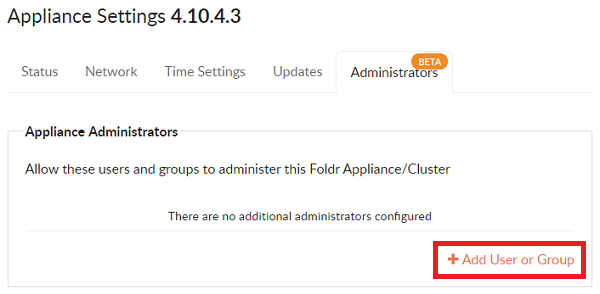
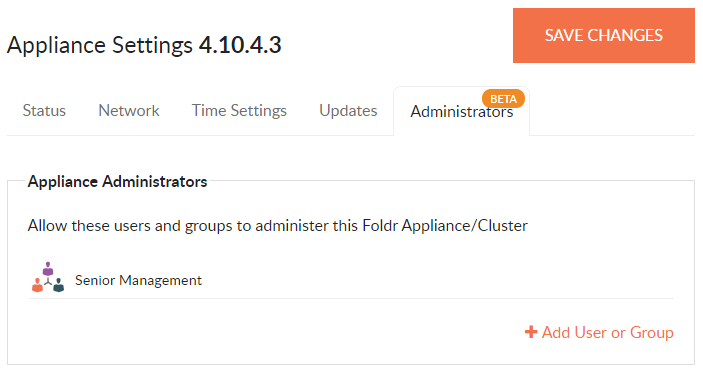
Open Foldr Settings → Appliance → Administrators and click + Add Users or Group.
-
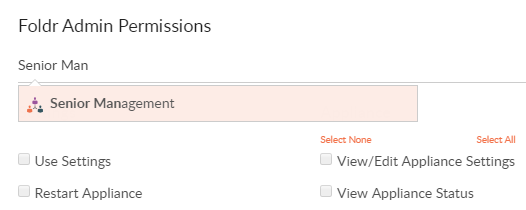
Search for the user, group, or local Foldr account you want to grant access to.
-
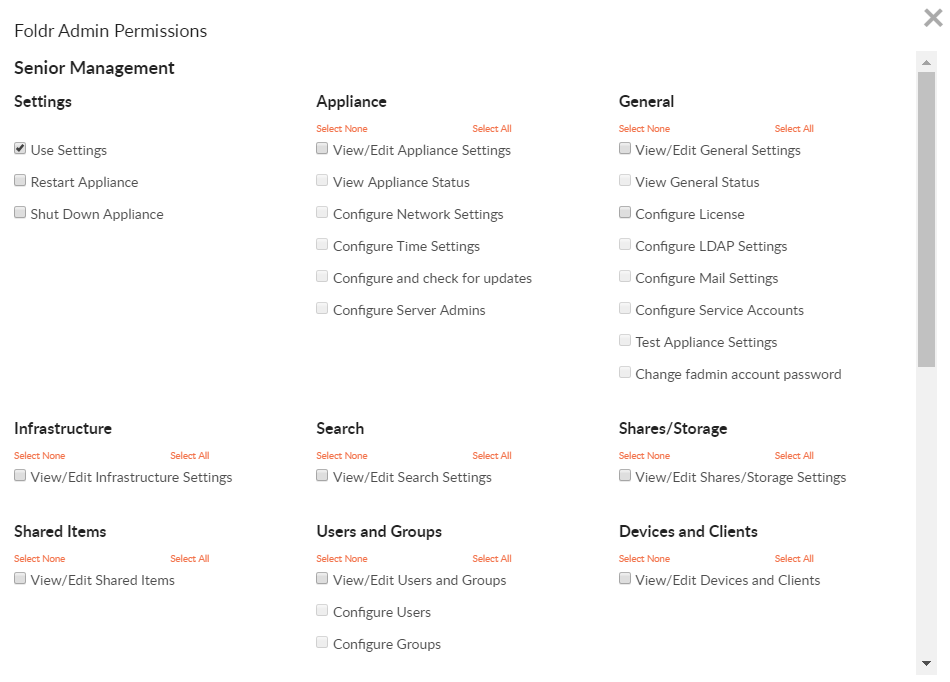
Tick Use Settings. This is the master toggle: without it, the user can’t sign into Foldr Settings at all and the per-area permissions stay greyed out.
-
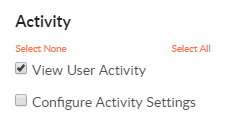
Tick the additional permissions you want to grant. The example below shows Senior Management granted access to user activity logs only.
-
When the permission set is complete, click Update at the bottom right.

-
Click SAVE CHANGES at the top right to commit.


What delegated admins see
Members of the granted group can now sign into Foldr Settings at:
https://<your-foldr>/settingson Foldr v10 and laterhttps://<your-foldr>:30537/settingson Foldr v9 and earlier
They land in a Foldr Settings UI showing only the areas you’ve granted access to. Everything else is hidden.

Practical patterns
- Audit-only role: tick Use Settings plus Activity view. The user can read logs and export them but can’t modify anything.
- Helpdesk role: tick Users, Shares, Devices to manage day-to-day account and access issues without exposing authentication or licence settings.
- Search admin: tick Search and (optionally) Activity to manage crawl schedules and watch the related logs.
- Compliance officer: tick Activity plus the relevant share-management areas; they can review what’s happened and adjust per-share retention or sharing limits without seeing identity config.
Related articles
- Foldr server (Alma) release notes: for any changes to the delegated-admin permission set in current releases.
- LDAP configuration: the directory integration delegated admins from AD groups depend on.